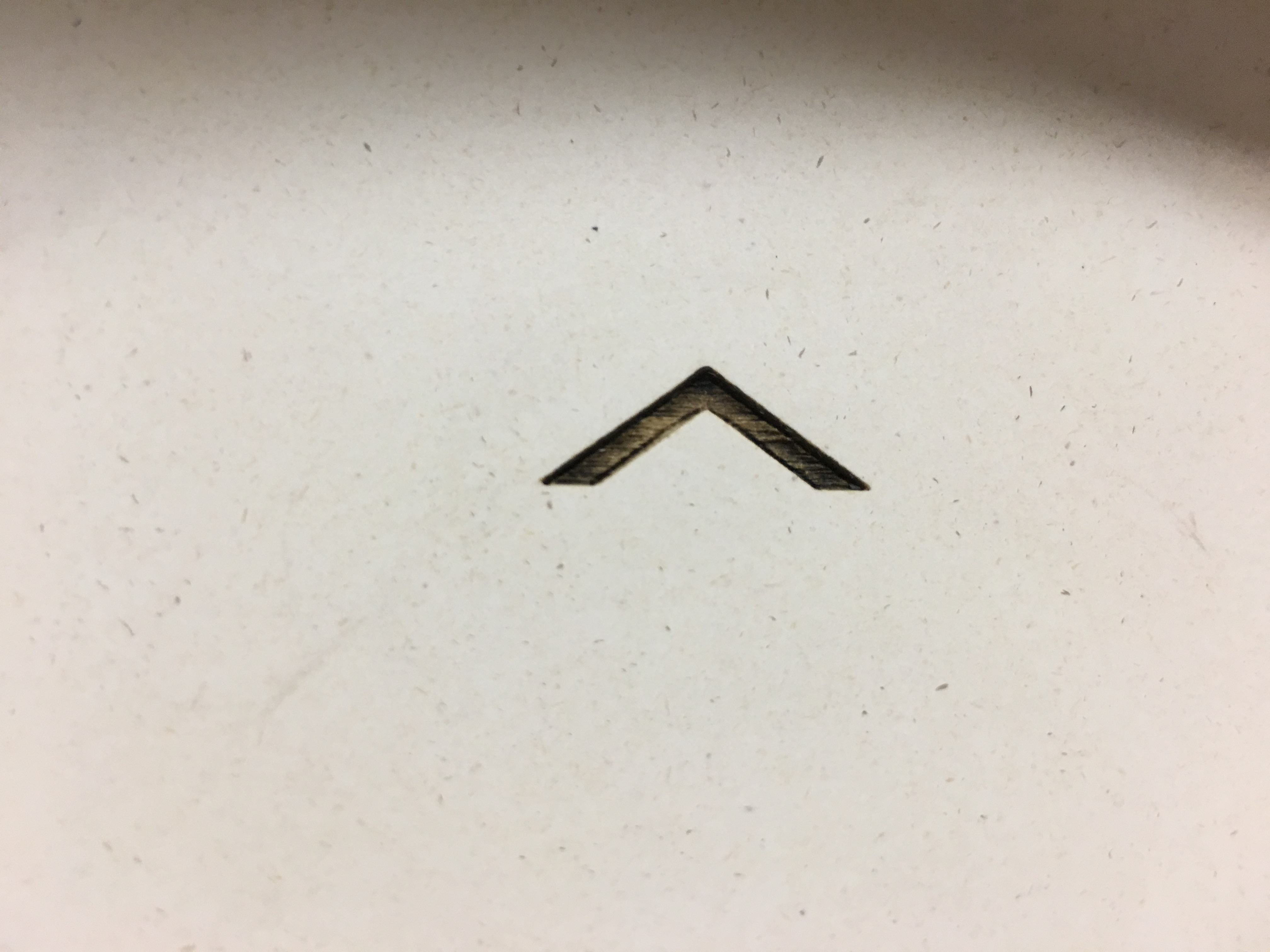
I discovered I could just push the bearing back up into its plastic fitting. It’s pretty snug, but it might work its way out again. If it does, we can try an adhesive or re-engineering the fitting.
Tests with the standard half-inch squares show that this does fix the problem. No more wiggles!
I recommend checking the bearings before doing any critical laser jobs. Just lower the table a few inches to reveal the tops of the threaded rods. If all four bearings are fully enclosed in their plastic fittings, that’s good. If not, you can push the bearings up into the fittings. If that’s needed, please let me know so I can consider a more permanent solution.
For at least the last few months, and possibly since the laser was moved to the current Colab 3.0 location, we’ve seen a slight wiggle in certain lines that should have been straight. The problem often surfaced in laser class. My standard class demonstration job is to cut out a half-inch square from 3mm baltic birch plywood. We’d see a slight wave in the bottom side of the square. Changing the size of the square would change the size of the wiggle, often eliminating the visible effect completely. Occasionally other users would report much more severe wiggle effects in particular jobs.
This image shows the sheet of baltic birch plywood from which a test square was cut. You can clearly see the wiggle along the bottom edge.
I believed this to be some sort of mechanical problem with the laser. Specifically, it seemed like it had to be something that was loose that should have been tight. The things I had checked before today seemed to be fine. Today I had some free time in the neighborhood of Colab, so I made a concerted effort to check everything that could be involved, and I think I now know what the problem is. I don’t know the exact repair procedure yet, but I’m confident it will be repairable.
The problem is in the table mechanism. As you probably know, our machine focuses the laser beam onto the work material by raising or lowering the table, while the laser tube, mirrors, and focusing lens all stay at their fixed heights. You might not be familiar with the mechanism that raises and lowers the table. There are four vertical threaded rods, one near each corner of the table. A stepper motor drives a toothed belt near the floor on the left side of the machine, and that toothed belt rotates the threaded rods on the left front and left rear corners. Another stepper motor and belt does the same for the threaded rods on the right side. A matching nut is fitted to each rod, and connected to the table, so that rotation of the rods is converted into vertical motion of each corner of the table. Both stepper motors move in sync, so that all four threaded rods rotate the same amount whenever the table is to move up or down. Thus the table stays level while moving up or down.
If any of the rods ever get out of sync with the others, the table will be tilted or even twisted, and manual intervention is required to realign the table. This happens rarely, and only when some mechanical blockage prevents one or more corners of the table from moving up or down. In that case, the stepper motor on the blocked side stalls and/or the toothed belt skips one or more teeth. This failure is noisy and hard to ignore. It has happened a few times, but as far as I know it has not happened since the laser was moved out of the original Colab 1.0 location. I’d remember, because the table realignment procedure is a huge hassle.
None of that has anything directly to do with the wiggle, which is an unwanted motion in the Y axis (front to back) and not obviously related to the Z axis (up and down) motion of the table.
Those threaded rods have to stay vertical to do their job, and they have to be free to rotate. So, there’s a bearing at the bottom end of each rod, connected to the floor of the chassis, and another bearing at the top end of each rod, connected to the underside of a horizontal chassis plate near the midline of the chassis. The weight of the table bears down on the bottom bearing, which is supported by the sturdy bottom of the chassis, and has nowhere to go. The weight also pulls down on the top bearing, which is dangling from the bottom of a panel, held in place by a plastic fitting and two screws that connect the plastic fitting to the panel. I suspect the top bearing is merely friction-fitted into the plastic fitting.
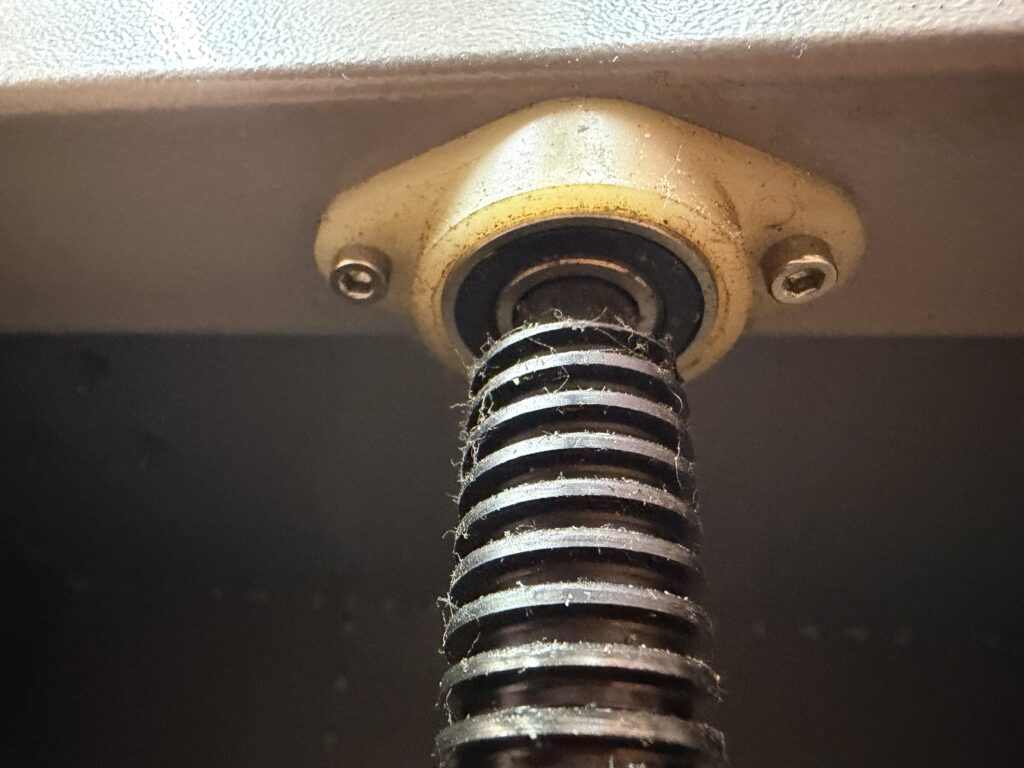
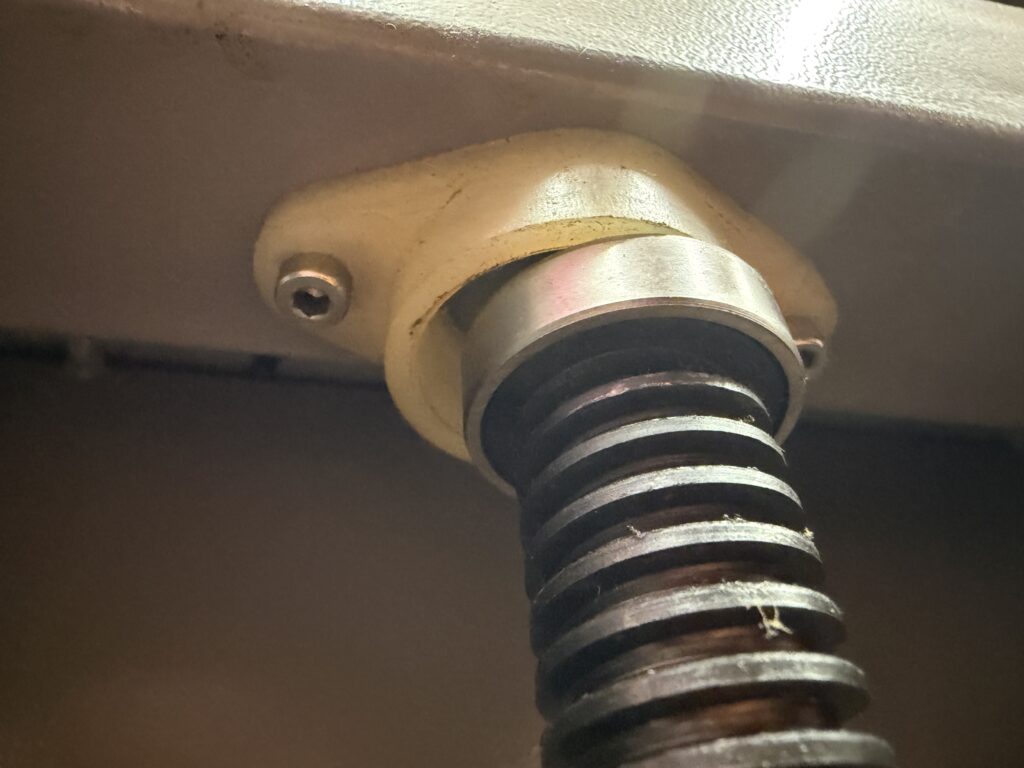
As you can see from these pictures of the left-front and right-front threaded rods, the bearing at the top of the right-front threaded rod has escaped from its plastic fitting. The same is true of the right-rear threaded rod. This is not an immediate catastrophe, because the four nuts connected to the moving table also provide some vertical alignment for the threaded rods. The right rods don’t just fall over. However, they are no longer held rigidly vertical. The tops of the right side rods are free to move a little in the Y axis, moving the table and flexing some other components that are nominally rigid.
But why would they move at all? Shouldn’t they just stay put in their intended vertical orientations? There’s no side force being exerted on the table, after all. Or is there? If you’ve ever put a hand on the laser chassis while it’s running a job, you know that it shakes a little. The substantial mass of the moving gantry, and to a lesser extent the mass of the moving head, creates a reaction force that moves the whole chassis whenever the gantry or head accelerates or decelerates. This is made worse by the fact that we usually leave the chassis sitting on its wheels, instead of deploying the leveling feet to make it sit square on the floor. The chassis (and thus the gantry and the head and the mirrors and the lens) shake relative to the table. Because the moving mass is mainly due to the moving gantry, the shake is mainly in the Y axis, and it only happens for a short time after the gantry has started or stopped suddenly.
This explains what we see with a half-inch test square. I almost always use the left-rear corner as the job origin point. That means the head is initially stationary and positioned over the left-rear corner of the square. When the job starts, the head moves to the right (in the X axis). It accelerates, then (maybe) runs briefly at the designated speed (45 mm/sec in this test) and then decelerates to zero again at the right-rear corner. This is only a motion of the head, though, and in the less-flexible axis of the mechanism, so this doesn’t cause a noticeable shake. Next is a right turn: the heavy gantry starts to move, accelerating forward and then decelerating back to zero. This is relatively straight, but shakes the machine. So after the next right turn, the gantry is stationary relative to the chassis but the table is shaking a little in the Y axis while the head accelerates to the left and decelerates to a stop at the front left corner of the square. That makes the bottom edge of the square a little wiggly! And only the bottom edge.
I tried another test to confirm the theory. I wedged pieces of scrap material between the edge of the honeycomb mesh table and the nearby chassis edges, discouraging the table from moving relative to the chassis. I re-ran the test, and the visible wiggle was gone. We can’t leave it wedged, though, because that would also prevent focusing.
I wanted to know how it was possible that the top bearings had escaped from their plastic fittings. The fittings seem undamaged. It seems like either the threaded rod plus bearing assemblies had gotten shorter by about a quarter inch, or else the distance between the bottom of the chassis and the midline panel of the chassis had grown by the same amount. Perhaps the chassis had gotten bent somehow, maybe during moving between Colab locations. I used a handy tape measure to investigate, and found that the chassis was pretty much the same dimensions on both sides. So the theory has to be that the rod assemblies got shorter.
I’m guessing that the bearing was friction-fitted onto the rod, and that it simply slipped down onto the rod somehow. That matches what the photos above show. However, at that point I was out of time and had to put the laser back together rather than tear it apart to find out how the rod assemblies were built. That part of the investigation, and the formulation of a repair plan, will have to wait for another day.
On April 24 I completed the physical and electrical installation of an additional stepper motor driver in the laser. This type of device sits between the Ruida laser controller and the actual stepper motor that mechanically drives the various axes of the machinery. The new one adds support for the U axis, in addition to the existing X, Y, and Z axes.
The idea is that this will better support the use of rotary adapters with Lightburn software. This theory has yet to be proven.
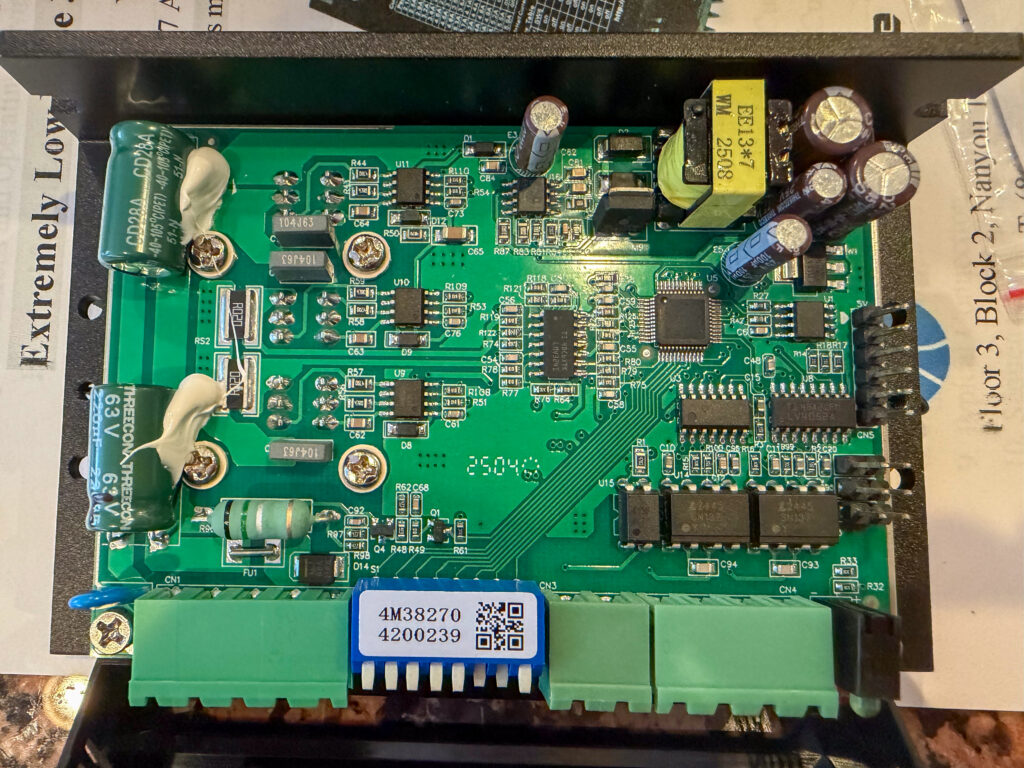
Here is what the new Leadshine 3DM583 stepper motor driver look like on the inside. It’s more complex than I expected. It’s the current version of the 3ND583 driver that is used in the existing X and Y axes.
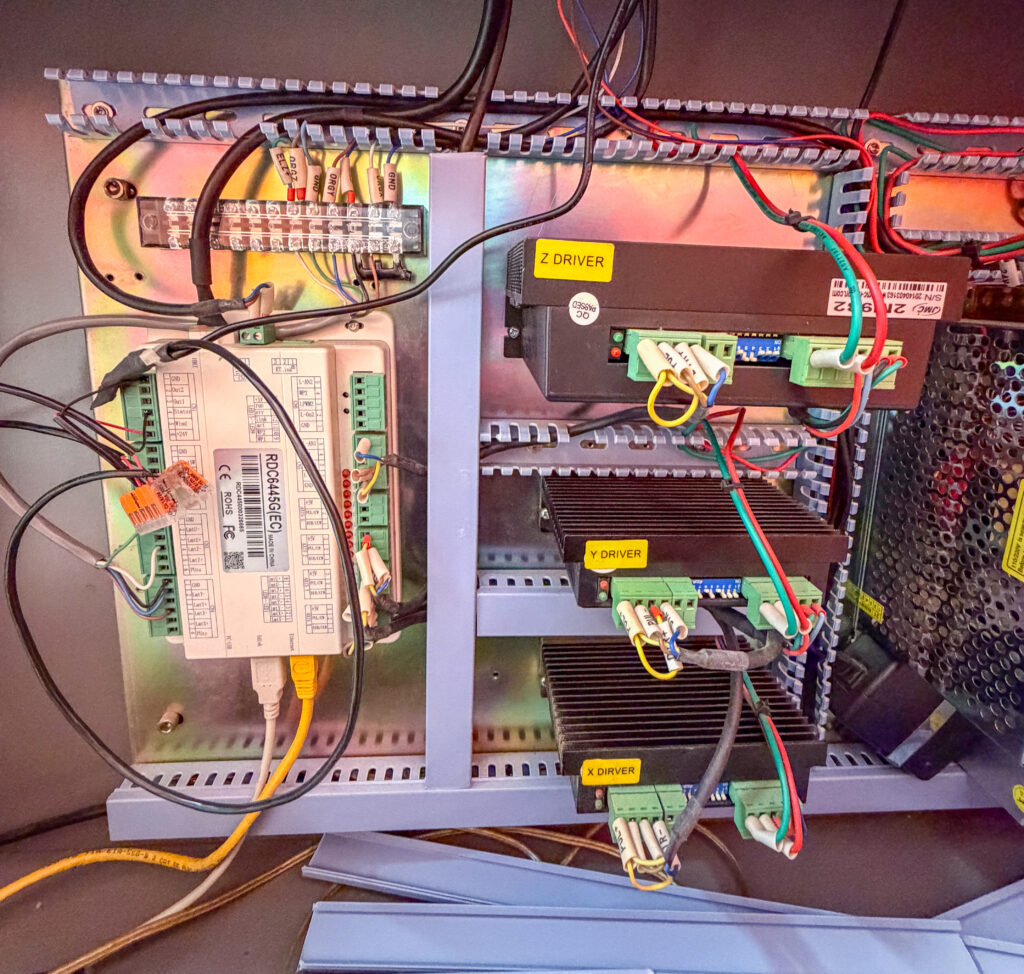
And here is a view of the electronics inside the laser, before the addition of the new driver. The off-white box on the left is the Ruida laser controller. The three black boxes in the middle are the existing stepper drivers, for the X, Y, and Z axes. The shiny perforated-metal box on the right edge is one of several power supplies. The new driver will be squeezed in above the Z axis driver.
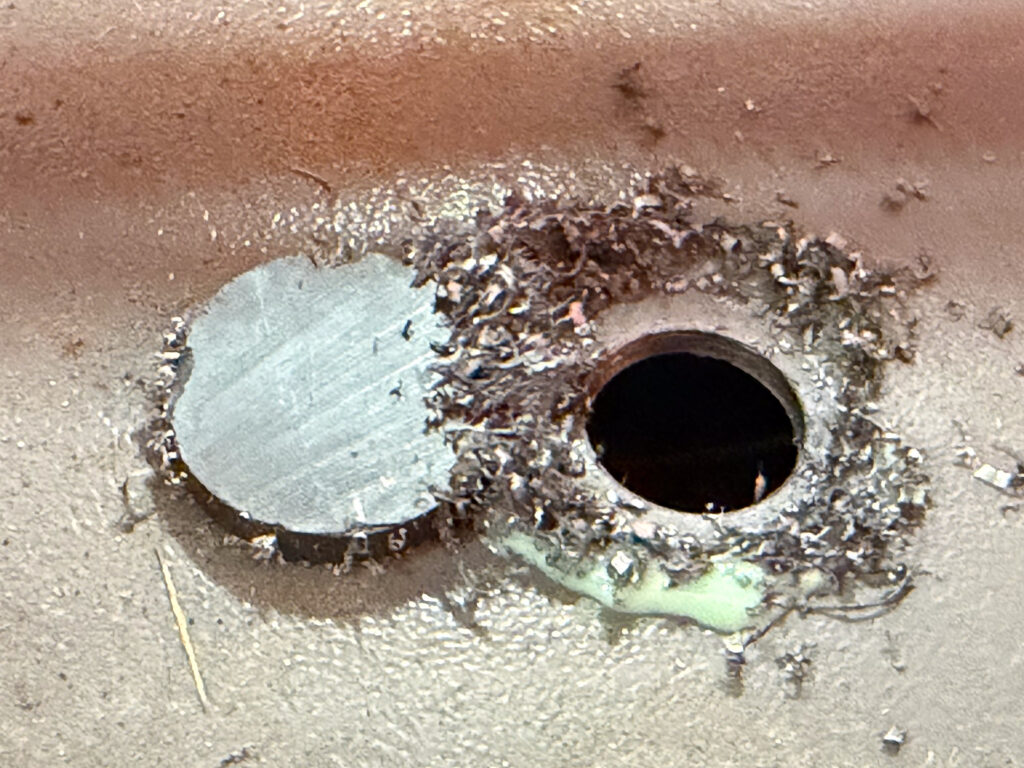
The biggest challenge mechanically was creating this 16mm hole in the chassis to mount the connector for attaching either of our two rotary adapters to the new driver. This was a fine excuse to acquire a new tool, so I picked up a set of annular cutters. There’s just room to use one of these with a small battery-powered hand drill, and it did a fine job of making a hole in the heavy sheet steel of the laser chassis. To the left of the hole there’s a magnet, which I used to help keep the tiny chips of metal from going all over the place. The light green material is a metal cutting fluid called Anchorlube.
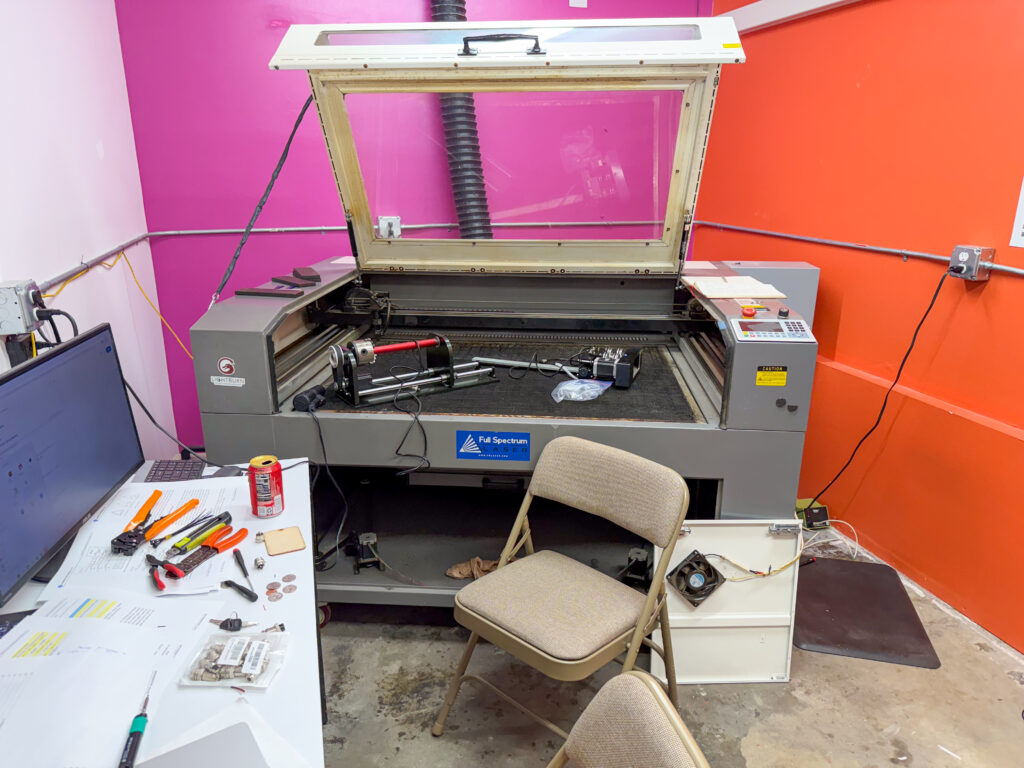
And here’s what the room looked like after an afternoon and evening of messing around. The electronics area is accessed through the doors on the right side, next to the orange wall. There isn’t a lot of extra room around the laser for service! Both of the rotary adapters can be seen on the laser’s bed. On the desk is a mix of tools that belong in the laser room, tools I brought from home, and tools I scrounged from other parts of Colab.
I performed only preliminary basic tests to confirm the installation. I’m able to rotate either rotary adapter using the U+ and U- buttons on the controller keypad, which proves that the electrical connections are basically working. However, it didn’t behave the way I expected. All the other axis motion buttons cause the corresponding motor to run while the button is held down. The new U axis, however, continues to move after the button is released, and only stops when another button is pressed. I expect there’s a setting for that, but I didn’t find it before quitting for the day.
On April 12 we had a scheduled workshop session in the laser room with the goal of setting up and calibrating the two rotary adapters for use with the laser in its “new” configuration, and creating a set of simple procedures for laser users to follow in order to use one of the rotary adapters. I was joined by Kip, Guy, Renee, and Sriram, who were all very helpful in trying to figure things out.
A rotary adapter replaces the Y-axis motion of the gantry with rotary motion of the work piece, enabling the laser to work on a cylindrical or conical object. This has always meant unplugging the gantry and plugging in the rotary adapter in the same place. That’s what the original laser controller expected, and it worked fine. Enabling the rotary adapter with the old software just meant a different setting for calibrating the Y axis.
As best we could figure out at the workshop, this doesn’t work as expected with the new controller. If we enable the rotary adapter, the job can’t be started by pressing the Start button, as is our standard procedure. If we instead used the Send button and then started the job from the laser’s control panel, the job would try to run, but there would be no motion on the rotary axis. This despite the fact that jogging the position manually in the Y axis did correctly cause the rotary adapter to spin. We only figured out that much by reading forum posts online.
We were able to get a rotary job to run with both axes, but only by turning off the switch in Lightburn that enables the rotary adapter. So, as far as Lightburn and the Ruida controller were concerned, it was just running a normal flat job on the bed. Of course, the Y axis calibration was used instead of any rotary axis calibration. If we wanted to use this as the standard procedure for rotary jobs, we’d have to ask the user to change the calibration setting, and then remember to change it back after the rotary job is completed. This seems inconvenient and error-prone, and risks exposing a beginner laser user to extra complexity needed only by users of the rotary adapter. This would probably be unacceptable, especially given that we’ve gotten by this long without the rotary adapters being commonly used.
Our best guess is that we need to connect the rotary adapter to the Ruida controller’s “U” axis, which is currently unconnected. In order to do that, we’ll need to install a fourth stepper motor controller (in addition to the existing X, Y, and Z axis controllers). I have that stepper motor controller on order.
It’s also possible that there are controller settings and/or Lightburn software settings that need to be adjusted in order to make it work with the old method (unplugging the gantry and plugging the rotary adapter into the Y axis controller). If so, I’d think we would have learned about those settings from the forum threads we read, but we did not.
The five of us will get together for a followup workshop once the new controller has arrived.
This is the first in a series of posts about how we’re using the newly commissioned 180W laser at CoLab! Follow along as we chronicle our creative and artistic adventures!
I’ve been trying out different aquaculture designs for a few years now, with some success. But the fish keep digging up the plants, and the turtles keep eating their leaves…so I’m sending the plants to plant jail!
I needed to cut some holes in acrylic sheet for the project, and selected this process because there’s almost no risk of chipping or cracking. It worked really well! This design should keep fish away from roots, and turtles away from foliage…hopefully…
The laser has been re-relocated to its new home at the new permanent location of Colab, at 4667 Mission Gorge Place, Suite A, in San Diego. Thanks to the great work of Jolly Rancher and many other volunteers, the laser has its own air-conditioned space with all-new exhaust ventilation to outdoors. The laser tube has been re-installed. A few finishing touches remain before the laser can be operated. After that, a thorough alignment and tuning is all that should be needed before the laser can return to regular service.
That is, if nothing else goes wrong. One of the finishing touches planned for the work session on Tuesday (April 8, 2025) was to refill the water cooling system that keeps the laser tube cool during operation. After adding the first gallon of distilled water to the chiller, we had about half a gallon of water on the floor. Investigation revealed that one of the tubes inside chiller had become brittle with age, and cracked in several places. Most of the tubes in the chiller are silicone and are still in good condition, but that one tube was clear polyurethane. That tube serves as a sight glass to judge the water level, so it has to be transparent. I didn’t find a local source for polyurethane tubing, but the blessedly nearby Home Depot was able to supply clear vinyl tubing in the same size. With the new tubing installed, the chiller no longer leaks. That little side quest consumed the remaining time in the Tuesday work session, though. The next step is to run the cooling water into the laser tube.
Speaking of the laser tube, it was practically new when Covid hit, but laser tubes of this type also have a limited shelf life. Five years later, it’s possible that the tube won’t work at all, or won’t work as well as it did when new. Once we have the cooling water working, we will test it and find out.
I found an inexpensive bamboo bowl at Daiso and decided to try it on the laser.
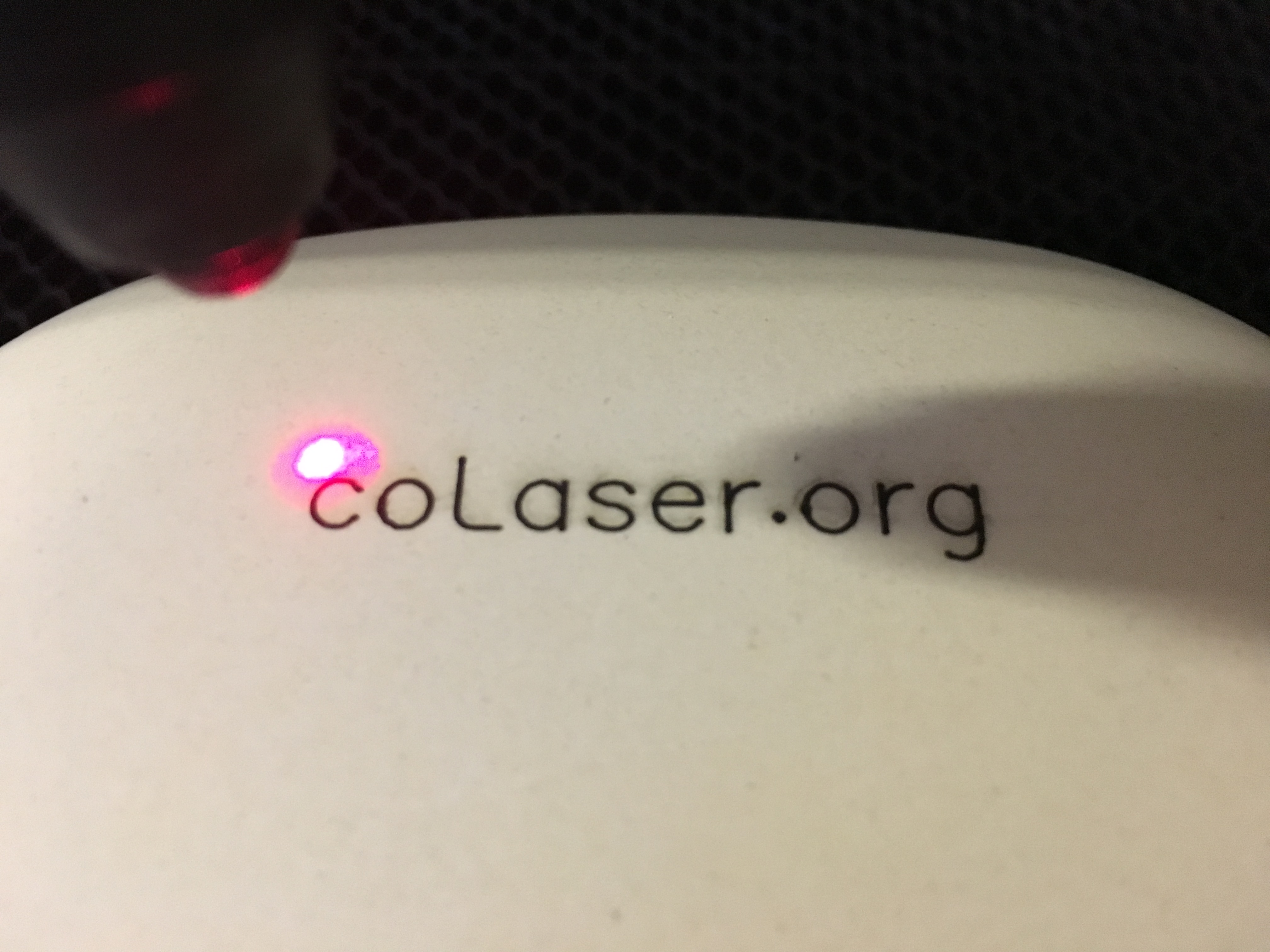
Here’s the label on the bottom of the bowl:
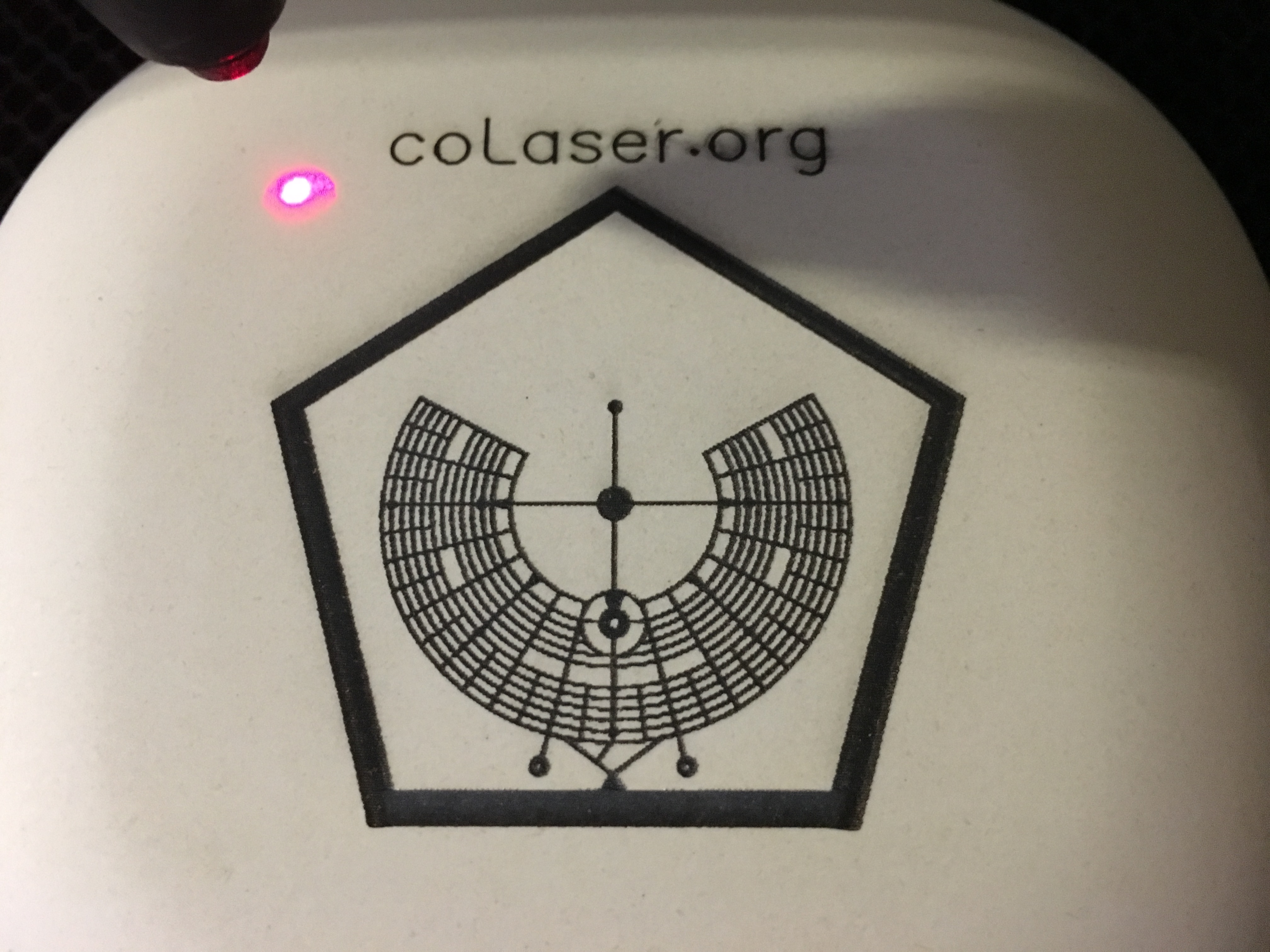
First I tried vector engraving. My guess was that it would take very little power to mark the soft wood, and that turned out to be correct. Here’s the result with vector speed at 100, vector power at 1, and vector current at 30%. Nice crisp letters, very black, quite shallow. Pretty good result.
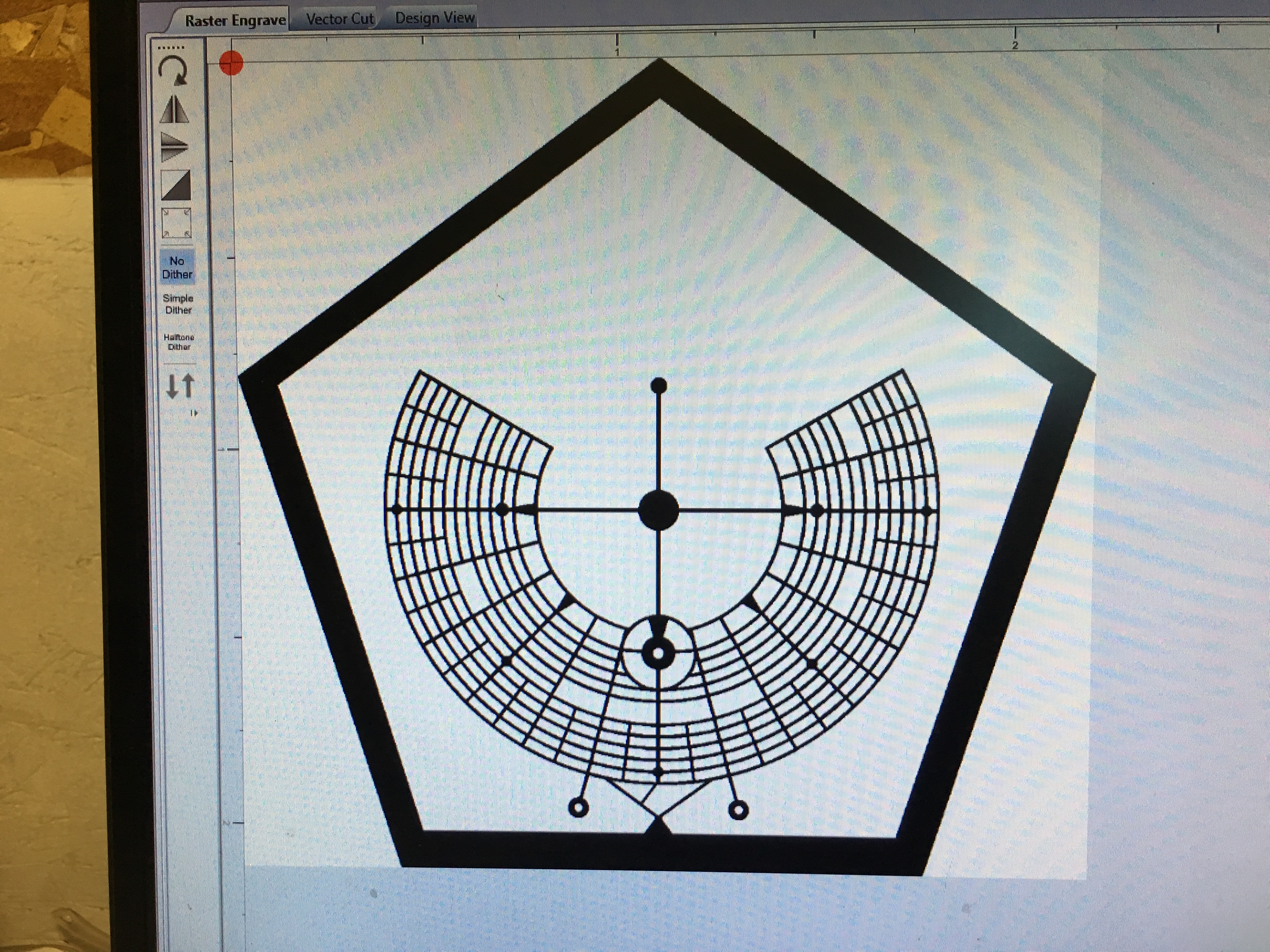
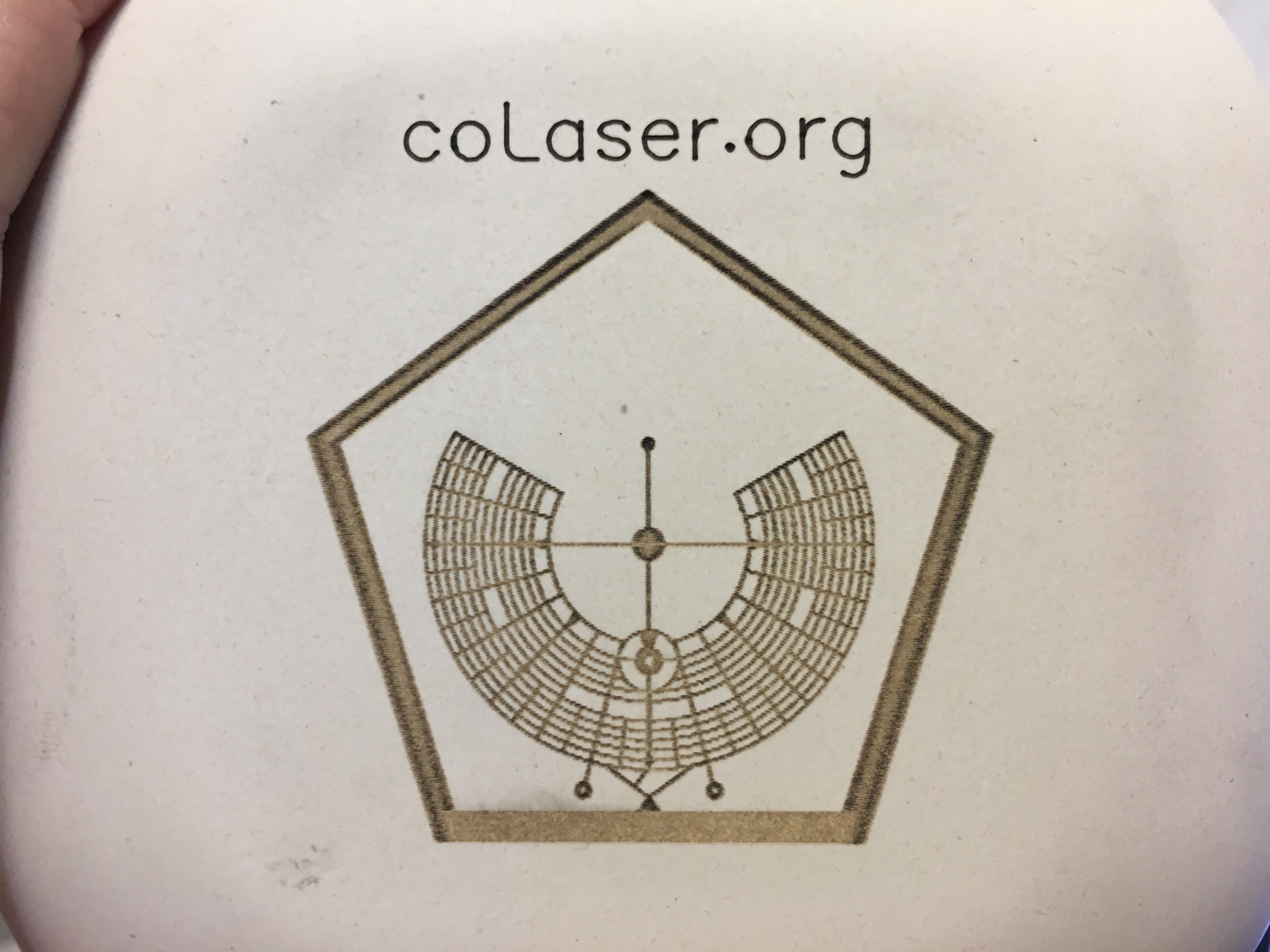
Next test was raster engraving. Here’s what my file looked like:
And here’s my first attempt. I tried a very low power setting again, based on the fine results from vector engraving. However, it wasn’t enough for raster engraving. You can see how the fine lines tend to fade out. Note how the fat lines have been broken into two lines, on the left and right edges where the laser turns on during rastering, and the horizontal fat line is missing entirely because it doesn’t get the turn-on pulse.
So, I turned the power up until the fat lines filled in. Here’s the result. The fine lines are nicely fleshed out and the fat lines are filled in, and everything is nice and dark. Very promising looking!
But then I wiped the bowl with a damp paper towel, and most of the black came right off, revealing an ugly core material that resembles cheap cardboard. This is not the effect I was hoping to get.
Even after wiping, there was some darkening in the places where the laser had the most effect, so I decided to see if I could get consistent dark engraving by simply turning up the power. I interrupted the test after it had engraved just the top of the pentagon. It was cutting quite deep into the bowl, and generating a lot of black debris on the surface.
The debris wiped off easily, but so did a lot of the black material, even deep down into the cut.
I have to conclude that this material is not suitable for raster engraving, unless you really like that ugly cardboard finish. For vector engraving, it seems OK, but you probably need to make sure to use a very low setting, so as not to penetrate the thin outer layer of the material.
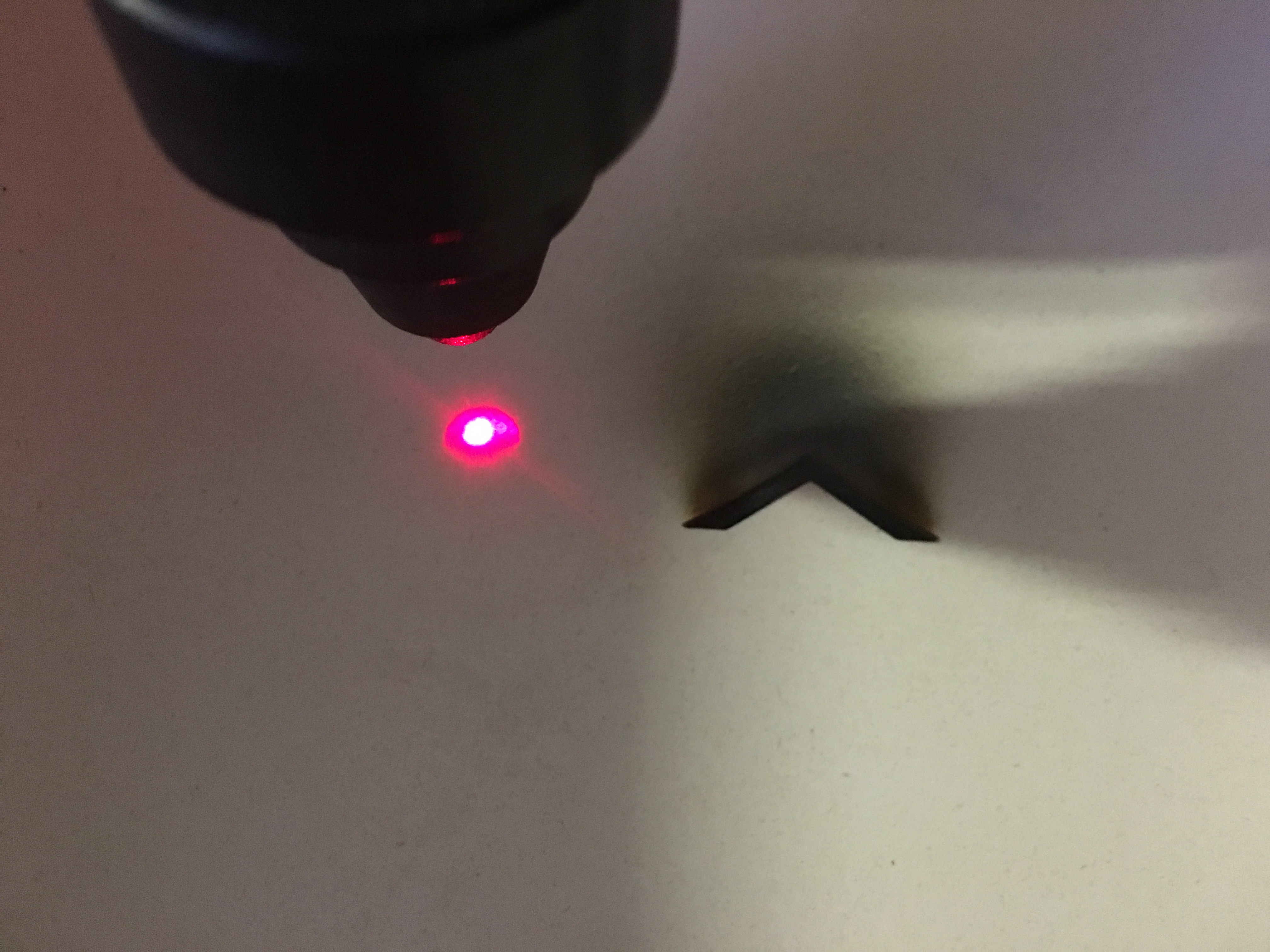
The beam combiner optic finally came in from China, but when I went to install it into the laser I found that the red dot laser still wasn’t working right. On closer examination, I found that the plastic lens built into the red dot laser unit itself was melted! I’m guessing this was a side effect of the damage to the old beam combiner. It must have reflected some significant portion of the main laser’s energy onto the red laser.
I’re purchased a replacement red laser and will get it installed soon.
Yesterday there was apparently a power surge on the AC power at Colab. This blew out the surge suppressors inside the high voltage power supply in the laser, with the result that the laser would not fire. This is the same failure we experienced about a year ago, so I already knew what to do and had the (inexpensive) replacement parts on hand, so the laser is already back up and running.
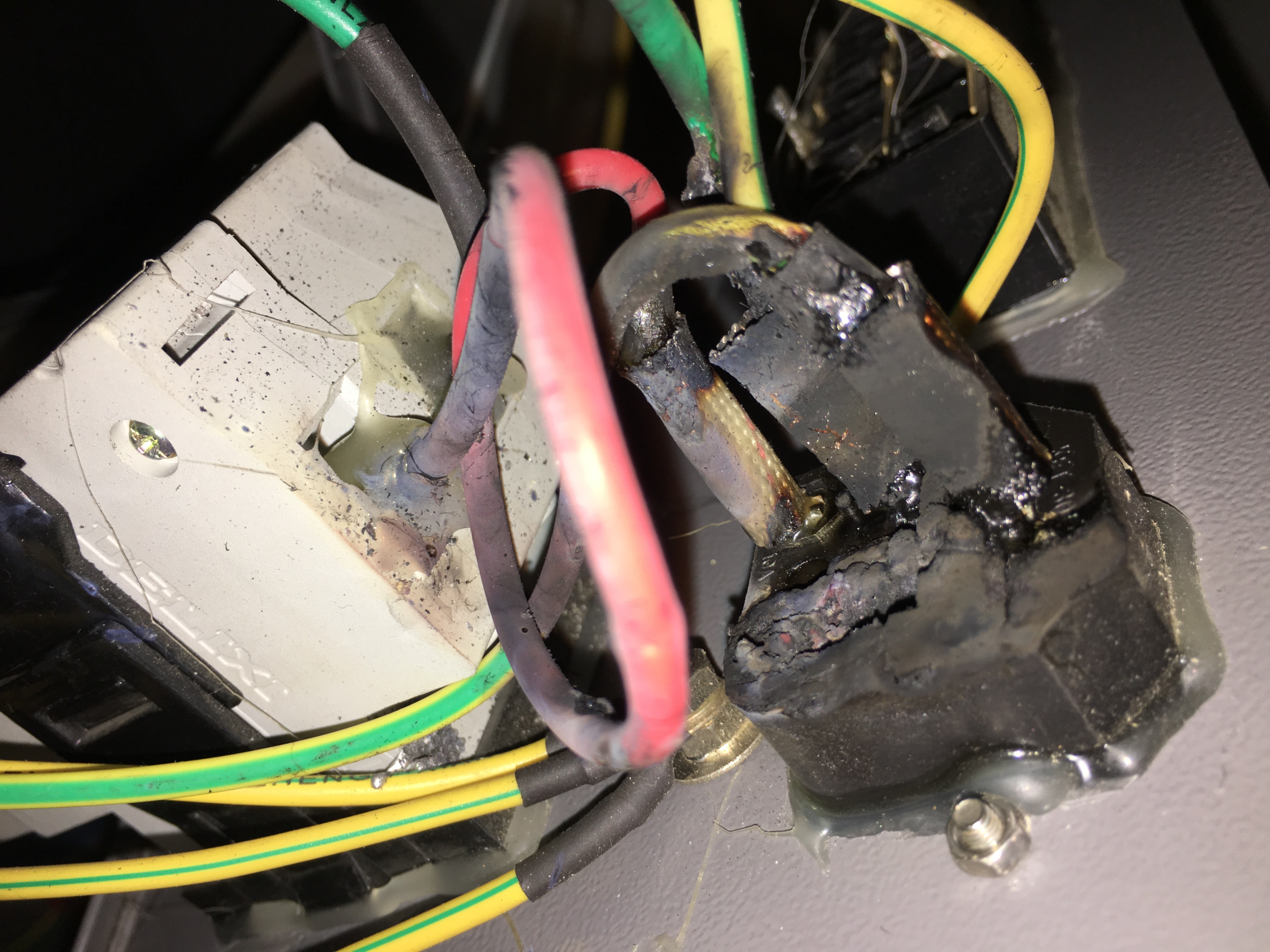
My quick and dirty repair of the power inlet module lasted about five weeks, and then burned up, as seen here:
So this time I ordered and installed a replacement part (Interpower 83110131) and got a new power cord.
Instead of the excessive 20A fuses that came with the laser, I installed a 15A fuse. I plan to measure the actual current draw soon. Full Spectrum now says it should be only 5A surge and 1.5A continuous. However, when the laser was first installed it was popping a 15A circuit breaker, so I don’t believe their numbers. If I can drop down to a 10A fuse, I will, because that IEC connector is only rated for 10A.